Turn your CAD 3D model into an explainer video as is
If you already have a 3D model of your design, you don't need to rebuild the shape for the video. Attach the CAD 3D model, and the AI places that shape as is in the 3D scene and puts the scenes that explain how it works, the camera work, and the narration script into a storyboard.
Who it's for
- For engineers who want to put design data to work in sales and at trade shows
- For people who have CAD but aren't experts in 3D rendering or video editing
- For development teams who want to share the shape and mechanism internally before prototyping
- For those who want to show customers a product's structure exactly as designed
Common challenges
CAD screens alone don't get the message across
Rotating a shape in a CAD viewer doesn't show what it's for or how it works. You end up relying on explaining it out loud in person.
Making a video takes separate expertise
Loading a model into 3D software, adjusting materials, lighting, and camera, then rendering and editing takes knowledge and time beyond what design work requires.
More work just for the video
The shape already exists in your design data, yet it takes time and days to recreate it for a video or adjust the data format you hand over.
What 3DCG Video AI can do
Use your 3D model's shape as is
Attach a 3D model in STEP, IGES, STL, OBJ, PLY, glTF/GLB, or 3MF format and use its shape as is in your video. The AI doesn't guess the shape, so it can show your CAD geometry exactly as designed (very detailed data is used after reducing the number of faces while keeping the shape).
The AI builds out the explanation scenes
Centered on your 3D model, the AI adds arrows, text, graphs, diagrams, and camera work to build scenes that explain how it works step by step. The structure and narration script use only facts from your materials, such as specification sheets.
Bring your drawings and documents too
You can also attach drawings (DXF), spec sheet PDFs, and figures from Excel or CSV files. Each file can be up to 30 MB. The documents the AI reads can total up to 20 MB per video. 3D models are counted separately.
No 3D software skills needed
The AI handles the materials, lighting, camera, and rendering settings in the 3D software. All you do is look at the storyboard, the still images for checking, and the preview video, then tell the AI in chat what you want changed.
Examples of videos you can make
- How gears mesh and turn, shown with a 3D model of a gear reducer
- How a valve is built, and how it switches the flow
- How to secure a workpiece, shown with a 3D model of a jig
- A 30-second trade show video that circles around the equipment's exterior
- A video for sharing a pre-prototype new product at an internal planning meeting
- The shape of a part and how it's used, shown with 3MF data
Sample videos similar to this use case
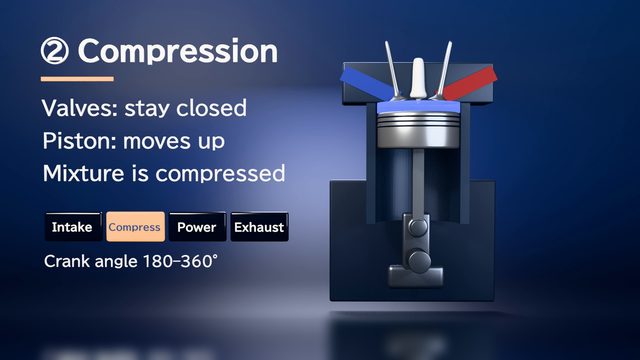
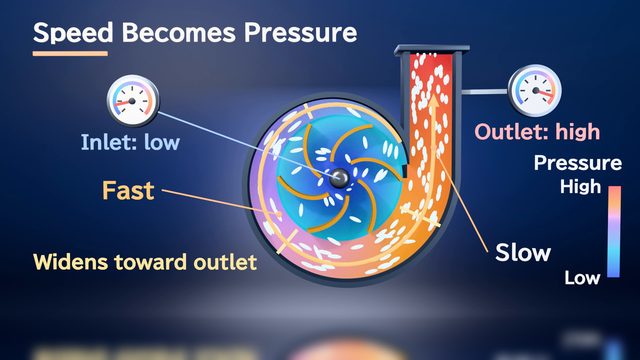
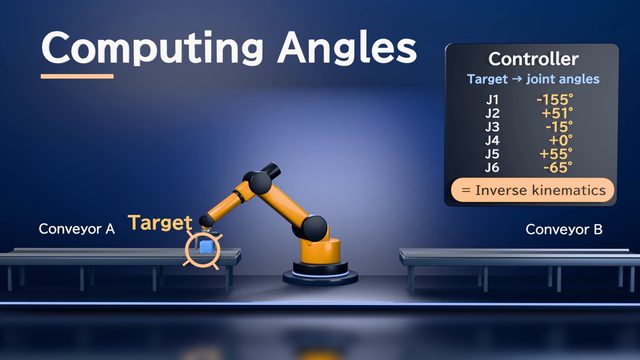
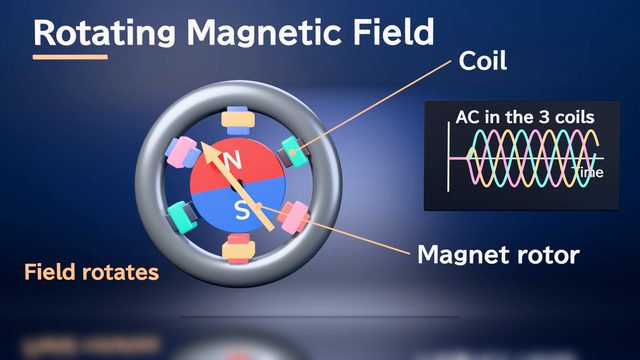
The samples listed here were made without CAD data, with the AI building the shapes from documents. If you attach a CAD 3D model, you can make a similar video using that shape.
Tips for better results
If you're unsure which format to export from CAD, we recommend STEP. For CAD-specific formats such as SolidWorks, export to STEP before attaching. For drawings, we recommend DXF. DWG files can be read as is, but tables and some shapes may not load, and hidden layers also show up in the drawing. Including small parts and screws that won't be shown in the video can make the shape look cluttered. Data narrowed down to the parts you want to show keeps scenes clean. If your data is split by part, tell the AI in chat the names of the parts you want to move and how they should move. For confidential parts, it's safest to remove them from the data before attaching.
Example chat requests
Using the attached STEP data (gear reducer) and spec sheet, create a 90-second video in which a sales rep explains the structure to customers. After a full turn around the exterior, explain, part by part, the order in which force is transmitted from the input shaft to the output shaft.
Price estimates
In Standard mode, one 1-minute video with 2 small revisions costs about 3,500 credits (1 credit = $0.01). High Quality mode costs about 7,100 to 12,000 credits. There's no monthly fee, and before each run we show you an estimate and a cap on the credits to be used.
Typical costs of 3D explainer videos (compared with production companies) · Pricing
FAQ
Which CAD formats are supported?
3D models: STEP, IGES, STL, OBJ, PLY, glTF/GLB, and 3MF are supported. Drawings: DXF and DWG. For CAD-specific formats such as SolidWorks, export to STEP before attaching. DWG files can be read as is, but tables and some shapes may not load, and hidden layers also show up in the drawing, so we recommend exporting to DXF and attaching that.
Can I attach large assembly data?
You can attach files up to 30 MB each. 3D models are counted separately from the 20 MB total for documents the AI reads. If a file is over 30 MB, narrow it down to the parts you'll show in the video, or lower the level of detail when exporting, then attach it.
Can I make a video for a product without CAD data?
Yes. Based on photos, drawings, and specifications, the AI builds a model in 3D. For products or parts you want shown exactly as designed, attach a CAD 3D model and that shape is used as is.
Is my design data used to train the AI?
No. Attached documents are used only to build your video and, under each AI provider's business terms, are not used to train AI. Documents and results are deleted automatically after 30 days. To be safe, remove any parts you can't make public from the data before attaching it.
3D animations from CAD data, made from your materials and chat
Just attach your materials and tell the AI in chat what video you want. The AI plans a storyboard, builds 3D visuals, and makes a video with narration and captions.